From Google Sheets, how to send email based on date

Suppose you want to send reminder emails automatically from your Google Sheets. The email needs to be sent when the invoice is overdue. So it requires checking the current date with the invoice due date. This guide shows how to do that in Google Sheets using Google Apps Script.
We have a Google Sheet with the list of clients and the invoice due date like this:

Mark Overdue rows
First, create a feature to mark the overdue rows. The script will iterate through the rows and add an “overdue” column.
function onOpen()
{
  var ui = SpreadsheetApp.getUi();
  ui.createMenu('Invoice')
      .addItem('Mark Overdue', 'doOverdueCheck')
      .addToUi();
}

function doOverdueCheck()
{
  var sheet = SpreadsheetApp.getActiveSheet();
  var data_range = sheet.getDataRange();
  var last_row = data_range.getLastRow();
  var today= new Date();
  today.setHours(0,0,0,0);

  sheet.getRange('E:E').clearContent();
  for(var r=2;r<=last_row;r++)
  {
    var inv_date = data_range.getCell(r,4).getValue();
    inv_date.setHours(0,0,0,0);
    if(today > inv_date)
    {
      sheet.getRange(r, 5).setValue("overdue");
    }
  }
}
Note
Note about Date Fields
The date fields in the Google Sheet return JavaScript Date objects when you call getValue() on that cell. This makes the rest of the check easy. Note that the dates (today and invoice date) are normalized to 0 hours first (so that only the date part is compared).
After entering this code: File → Save and then close and re-open the Google Sheet. It should show the new menu item. Try running “Mark Overdue”.
Extract the overdue record
Now that we have the overdue records, extract the information from the row so that we can customize the email.
function getOverDueInfo(row)
{
  var sheet = SpreadsheetApp.getActive().getSheetByName('Sheet1');

  var values = sheet.getRange(row,1,row,4).getValues();
  var rec = values[0];

  var overdue =
      {
        first_name:rec[0],
        last_name:rec[1],
        email: rec[2],
        due_date:rec[3]
      };

   overdue.name = overdue.first_name +' '+ overdue.last_name;
   overdue.date_str = sheet.getRange(row,4).getDisplayValue();

   var due_date = new Date(overdue.due_date);
   due_date.setHours(0,0,0,0);
   var today = new Date();
   today.setHours(0,0,0,0);

   var difference_ms = Math.abs(today.getTime() - due_date.getTime() );

   overdue.num_days = Math.round(difference_ms/(24*60*60*1000) );

   return overdue;
}
This code extracts the client details from the row and computes values like the number of days since the invoice is due. You’ll use this overdue information to compose the email.
Compose the email
Create an HTML template in the script editor: File → New → select HTML. Here is a sample HTML email template (save it as client-email.html or a similar name in the script project):
<!DOCTYPE html>
<html>
  <head>
    <base target="_top">
  </head>
  <body>
    <h2>Your Invoice is Overdue</h2>
    <p>Hello <?= overdue.name ?> </p>
    <p>
    Your invoice is due since <?= overdue.date_str ?> . It has been <?= overdue.num_days ?> days now.
    </p>
    <p>Please complete the payment within next 1 day. </p>
    <p>Let us know if you need any help completing the payment</p>
    <p>Expecting more continued support from you, as always</p>

    <p>Thanks<br/></p>
    Company.com

  </body>
</html>
Notice how the overdue record fields (like overdue.name and overdue.date_str) are used in the template.
Here is the code to compose and send the email using the template:
function sendEmail(row)
{
  var overdue = getOverDueInfo(row);

  var templ = HtmlService
      .createTemplateFromFile('client-email');

  templ.overdue = overdue;

  var message = templ.evaluate().getContent();

  MailApp.sendEmail({
    to: overdue.email,
    subject: "Your invoice is due.",
    htmlBody: message
  });

}
Sending emails to all overdue clients
Iterate through the rows, find overdue clients and send the email.
function sendOverdueEmails()
{

  var sheet = SpreadsheetApp.getActive().getSheetByName('Sheet1');

  var data_range = sheet.getDataRange();
  var last_row = data_range.getLastRow();
  var today= new Date();
  today.setHours(0,0,0,0);

  for(var r=2;r<=last_row;r++)
  {
    var inv_date = data_range.getCell(r,4).getValue();
    inv_date.setHours(0,0,0,0);
    if(today > inv_date)
    {
      sendEmail(r);
    }
  }

}
You can invoke this function in two ways:
- Add a menu item to trigger the sendOverdueEmails() function:
function onOpen()
{
  var ui = SpreadsheetApp.getUi();
  ui.createMenu('Invoice')
      .addItem('mark Overdue', 'doOverdueCheck')
      .addItem('send Emails', 'sendOverdueEmails')
      .addToUi();
}
This requires you to open the sheet and run “Send Emails” manually.
- Or automate the process with a time-driven trigger (described next).
Automating emails from your Google Sheet
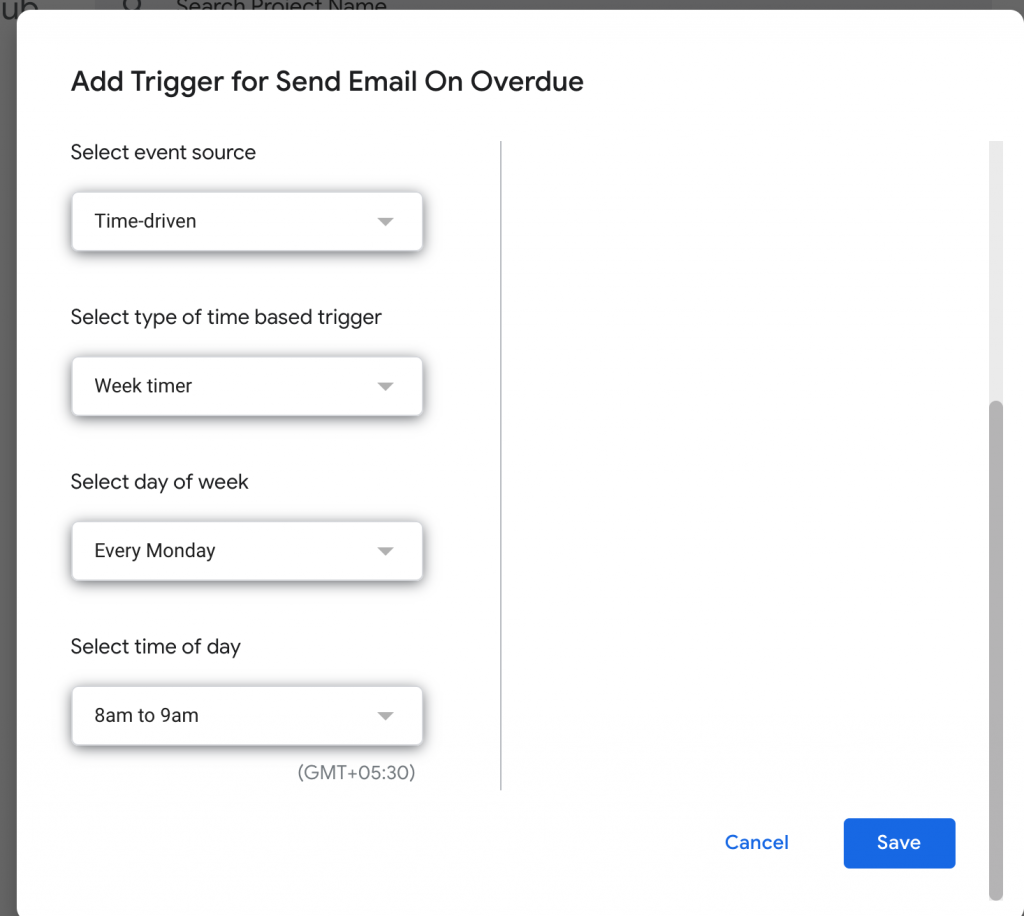
To automate, install a trigger from the Google Apps Script editor:
- From the Script Editor, select Edit → Current project’s triggers.
- In the “project triggers” page, add a new trigger.
- For “Choose the function to run” select sendOverdueMails (or the correct function name you used, e.g., sendOverdueEmails).
- For “Event source” choose “Time-driven”.
- Choose the timer type (for example, “Week timer”, “Every Monday”).
- Save.
You can get the complete script here: https://gist.github.com/prasanthmj/ad3b6ea51e2f651a99d56e1875099196
See also
- Make a copy of the sample sheet: https://docs.google.com/spreadsheets/d/1XuJ1KmbA2AEFoaWSZKB5zvv\_VwuRYDNdiUeVobl3zRY/edit?usp=sharing
- The whole script: https://gist.github.com/prasanthmj/ad3b6ea51e2f651a99d56e1875099196
- How to send HTML email in Google Apps Script: https://blog.gsmart.in/google-apps-script-send-html-email/
- How to send email when cell value changes in Google Sheets: https://blog.gsmart.in/send-email-when-cell-value-changes-in-google-sheets/
- How to send email from Google Sheets: https://blog.gsmart.in/send-email-from-google-sheets/