BlackBox
https://www.hackster.io/SURYATEJA/black-box-obd-pi-using-raspberry-pi-e363aa
Black Box - OBD-Pi Using Raspberry Pi
Our project is a black box - OPD-Pi using Raspberry Pi.
BeginnerFull instructions provided1.5 hours37,921
Things used in this project
Hardware components | ||||
|---|---|---|---|---|
_ztBMuBhMHo.jpg?auto=compress%2Cformat&w=48&h=48&fit=fill&bg=ffffff) | 01ea7ad981c84d2a9c62a593f3c85526 | × | 1 | |
| Arduino UNO | ||||
 | ffe0ee60875e47a6b99e9721e3a20467 | × | 1 | |
| Raspberry Pi 3 Model B | ||||
 | d3eb86c237244541a29ff2b8d92e1284 | × | 1 | |
| USB-A to Micro-USB Cable | ||||
Software apps and online services | ||||
 | 08958ff02ced4cc3a1ba67dc4c32370c | |||
| Arduino IDE | ||||
| c0b9ae8fbc4e434580cec6a3b13999b4 | ||||
| Raspberry Pi RASPIAN SOFTWARE | ||||
Story
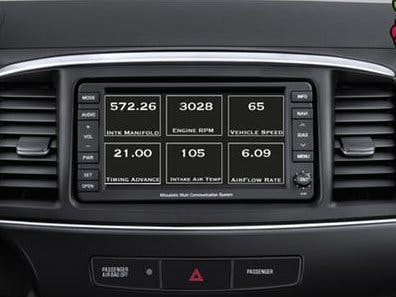
In this tutorial, you will learn how to connect your Raspberry Pi to a Bluetooth OBD-II adapter and display real-time engine data to your car's aftermarket head unit!
Step 1: Hardware Required:

- Raspberry Pi Model B or B+
- Aftermarket head unit (Note: Must support Auxiliary input)
Step 2: What Is OBD-II?

OBD stands for On-Board Diagnostics, and this standard connector has been mandated in the US since 1996. Now you can think of OBD-II as an on-board computer system that is responsible for monitoring your vehicle’s engine, transmission, and emissions control components.
Vehicles that comply with the OBD-II standards will have a data connector within about 2 feet of the steering wheel. The OBD connector is officially called a SAE J1962 Diagnostic Connector, but is also known by DLC, OBD Port, or OBD connector. It has positions for 16 pins, and looks like this:
Step 3: PyOBD?
pyOBD (aka pyOBD-II or pyOBD2) is an open source OBD-II (SAE-J1979) compliant scantool software written entirely in Python. It is designed to interface with low-cost ELM 32x OBD-II diagnostic interfaces such as ELM-USB. It will basically allow you to talk to your car's ECU, display fault codes, display measured values, read status tests, etc.
I took a fork of pyOBD’s software from their GitHub repository, https://github.com/peterh/pyobd, and used this as the basis for my program.
The program will connect through the OBD-II interface, display the gauges available dependent on the particular vehicle and display real time engine data to the cars aftermarket head unit in an interactive GUI.
Step 4: Software Installation
Before you start you will need a working install of Raspbian with network access.
We'll be doing this from a console cable connection, but you can just as easily do it from the direct HDMI/TV console or by SSH'ing in. Whatever gets you to a shell will work!
Note: For the following command line instructions, do not type the '#', that is only to indicate that it is a command to enter.
Before proceeding, run:
## sudo apt-get update
## sudo apt-get upgrade
## sudo apt-get autoremove
## sudo reboot
Install these components using the command:
## sudo apt-get install python-serial
## sudo apt-get install bluetooth bluez-utils blueman
## sudo apt-get install python-wxgtk2.8 python-wxtools wx2.8-i18n libwxgtk2.8-dev
## sudo apt-get install git-core
## sudo reboot
Step 5: Vehicle Installation

The vehicle installation is quite simple.
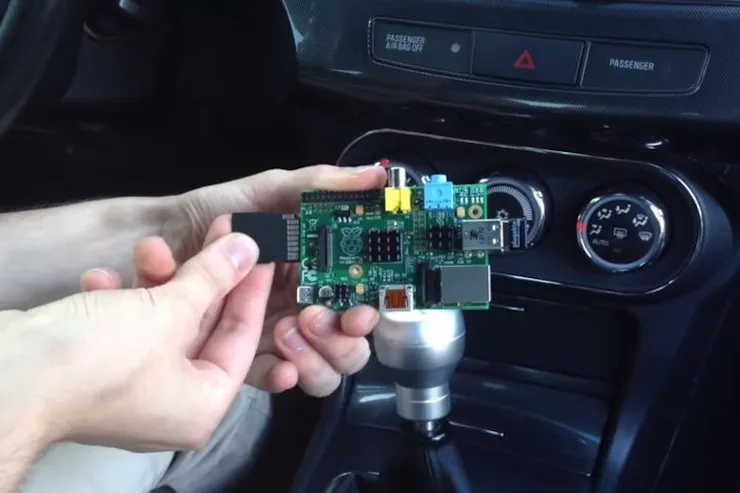
- 1. Insert the USB Bluetooth dongle into the Raspberry Pi along with the SD card.
- 2. Insert the OBD-II Bluetooth adapter into the SAE J196216 (OBD Port) connector.
## startx- 7. Launch BlueZ, the Bluetooth stack for Linux. Pair + Trust your ELM327 Bluetooth Adapter and Connect To: SPP Dev. You should see the Notification "Serial port connected to /dev/rfcomm0"
Note: Click the Bluetooth icon, bottom right (Desktop) to configure your device. Right click on your Bluetooth device to bring up Connect To: SPP Dev.
- 8. Open up Terminal and run:
## cd pyobd-pi
## sudo su
## python obd_gui.py
Use the Left and Right arrow keys to cycle through the gauge display.To exit the program just press Control and C or Alt and Esc.
Step 6: Data Logging
If you would like to log your data run:
## cd pyobd-pi
## python obd_recorder.py
The logged data file will be saved under: /home/username/pyobd-pi/log/Enjoy and drive safe!